
Google Sheets
Send data directly to the selected spreadsheet
Use cases
Spreadsheet Data Entry helps you collect structured data from a phone and save it to Google Sheets. This page includes ready-to-use scenarios for inventory, inspections, sales, education, logistics, personal finance, food service, and field work.


Configure the form for your task: choose input field types, where to save the data, and the automation features you need
Send data directly to the selected spreadsheet
Save data locally for later export



choose one of two options

select a value from a predefined list


QR codes and barcodes

current device coordinates

take a photo or choose one from the gallery
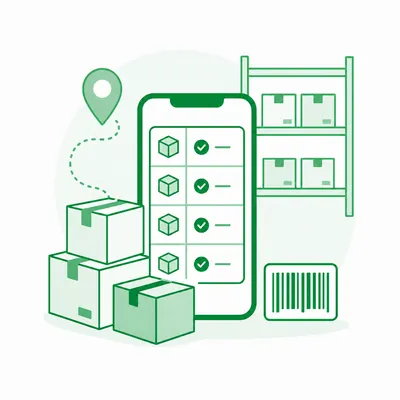
for warehouses, stockrooms, and retail locations
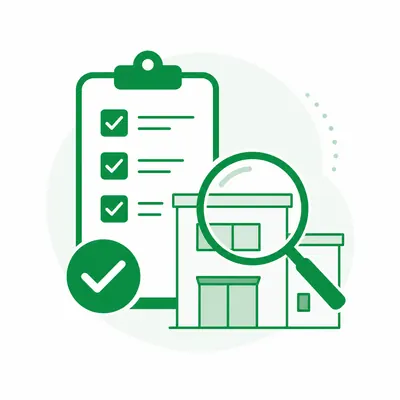
for inspectors, supervisors, and facility managers

for teachers, tutors, instructors, and training centers

for sales managers and field representatives

for individual and shared household expense tracking

for cafés, restaurants, kitchens, and small food businesses
for drivers, couriers, dispatchers, and transport companies

for service, installation, maintenance, and other mobile crews
Spreadsheet Data Entry is a mobile app for entering structured data quickly from a phone. You create a form, add the required fields, and map them to spreadsheet columns. Each submission adds a new row to Google Sheets or can be saved locally. The app is useful for repetitive processes where editing a spreadsheet directly on a small screen is inconvenient.
Install Spreadsheet Data Entry from the App Store or Google Play, sign in with your Google account, and grant access to the spreadsheets you need. Then create a form, select the Google Sheet and worksheet, add fields, and map each field to a column. After a test submission, check the new row and adjust the field order or required settings if necessary.
The app needs access to the Google account only to work with spreadsheets available to that account. Use a separate spreadsheet for each process when practical, limit participant permissions, and avoid collecting data that is not required for the task. File access is controlled through standard Google Sheets sharing settings, so the owner can change or revoke permissions at any time.
A form can include text, numbers, Yes / No switches, date, time, date and time, predefined lists, QR and barcode scanning, and geolocation. Lists and automatic date, time, or location values are useful for repetitive entry. Fields can be required so a record cannot be submitted until the key information has been completed.
Choose the category closest to your process, then open a use case with a similar workflow: inventory, inspection, sales, education, logistics, personal finance, food service, or field work. Each use case shows the recommended form structure, spreadsheet fields, alternatives, and SDE benefits. You can use the template as provided or remove columns, rename fields, and add your own list values.
Each use case includes a spreadsheet template with column headings, a sample row, field setup guidance, and formulas when calculations are needed. Copy the template to Google Sheets, keep the column structure, and map the form fields to those columns. Calculated columns should not be added to SDE: the app sends the source data, while spreadsheet formulas calculate the results automatically.
Yes. If there is no connection during work, the submission is saved in a queue on the device and sent to Google Sheets when connectivity returns. Before a long offline session, open the form and verify its settings. After reconnecting, confirm that the queue has been sent and the rows appeared in the spreadsheet, especially when several employees are collecting data at the same time.